
Starting failover
You can start failover from DRaaS overview dashboard.
Prerequisites
Before starting failover, ensure:
-
No restore is in progress, cancel or wait until it finishes
-
The last restore session was successful (green)
-
The failover devices belong to the same customer
These prerequisites have been elaborated in the later section.
Steps to start failover
-
Select any of the devices and then click Start Failover link
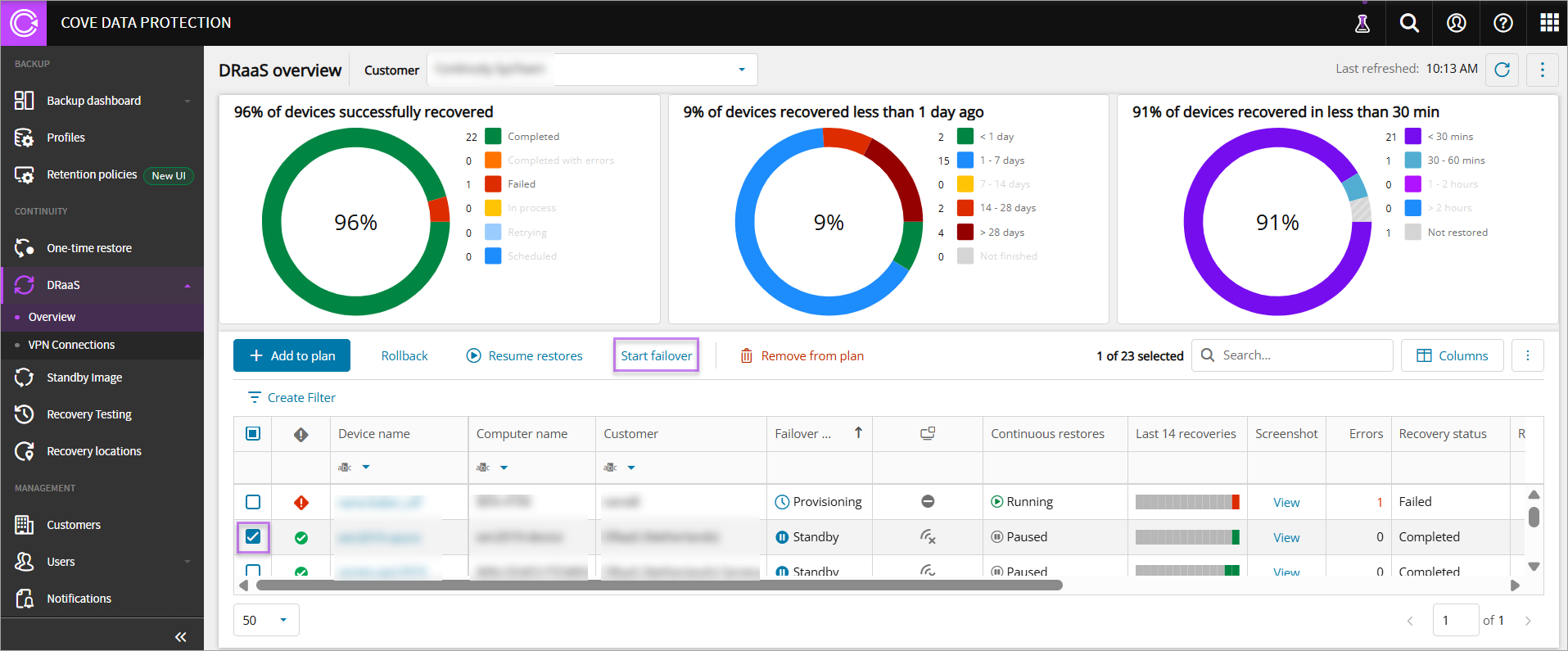
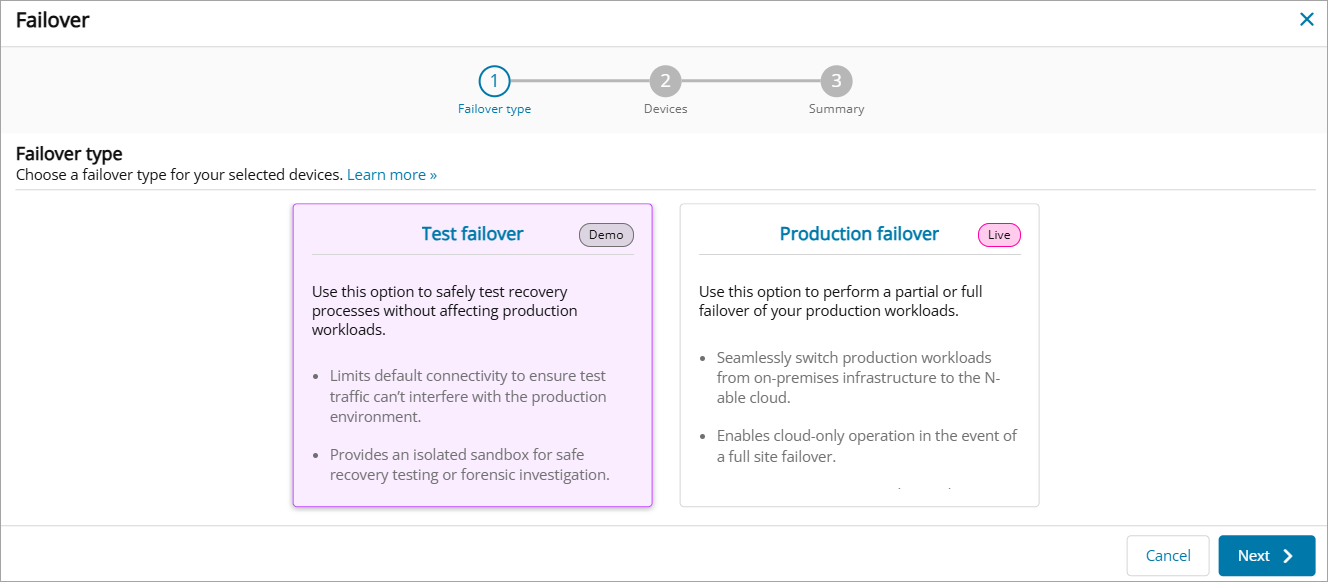
The Failover window displays which includes three steps:
-
Failover type
-
Click any of the failovers from the Failover window as per your requirements and click Next
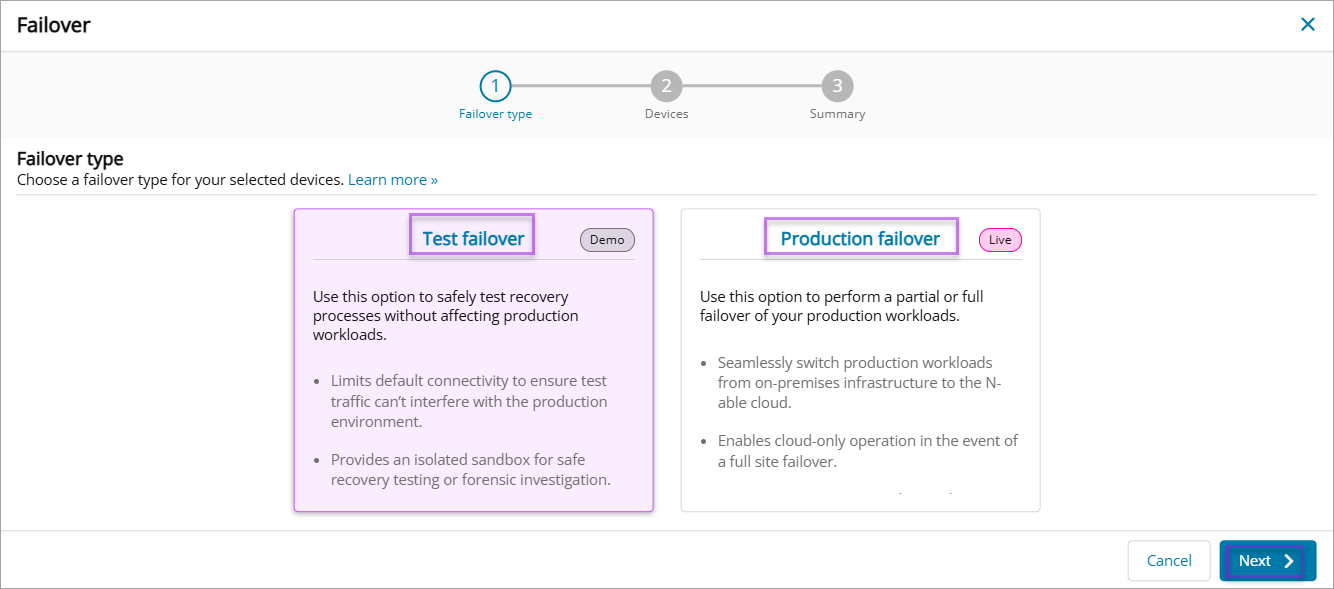
The Failover -> Failover type includes:
-
Test failover: Use this when you simply need to start the machine for access to file system or when you want to simulate failover scenarios
-
Production failover: Use this in a real disaster scenario for partial or full failover. Partial failover temporarily replaces some production servers with disaster recovery servers, full failover starts the entire infrastructure in our Disaster Recovery (DR) facility to maintain business continuity
For Production failover, the subnet and IP settings work the same as in Test failover. Test failover use less powerful VMs and may eventually auto-manage uptime (e.g., power off machines with no traffic), whereas for Production failover, you would be contacted before taking such action.
-
-
-
Devices
-
Enter Subnet and Default Gateway IP and click Next
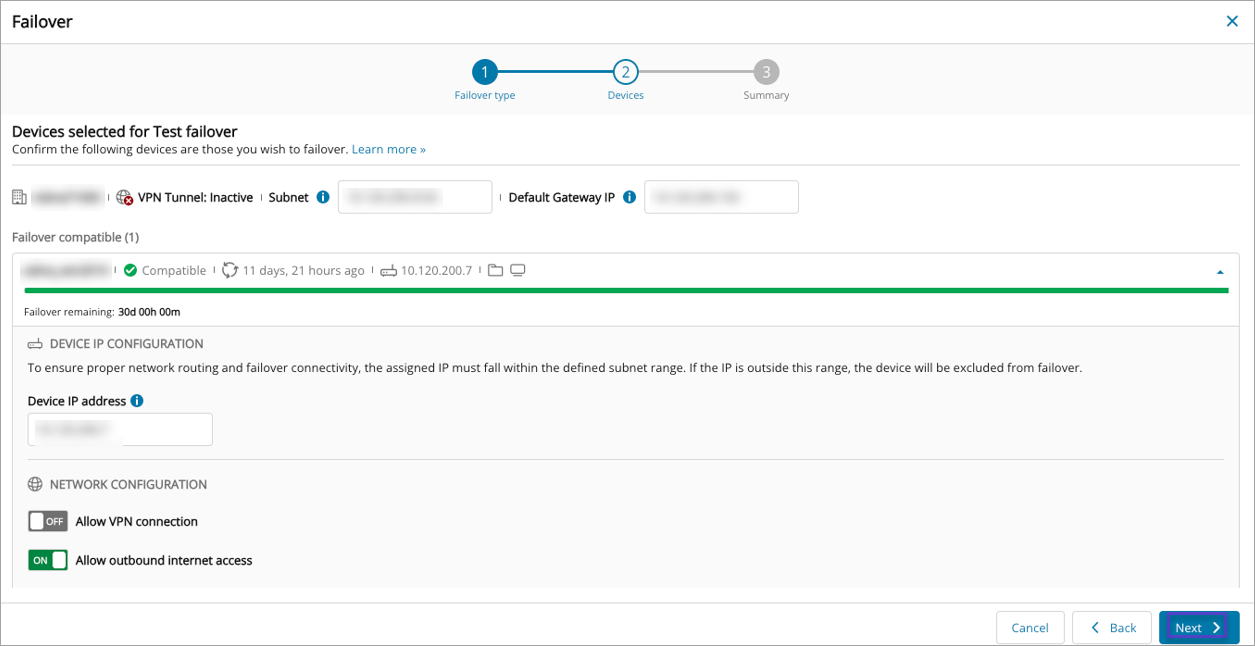
The Failover -> Devices includes:
-
Subnet: Refers to the subnet that you have in your local On-Prem network to extend this network to the DRaaS cloud
-
Default Gateway: Refers to the unique IP address of VPN Gateway Virtual Machine that is assigned to one of the VPN server network interfaces and is needed for internet access. This is assigned to the Virtual machine and is used as a default gateway for all the machines that are started for failover process so that they can connect to the internet through the gateway
-
Device IP address: Refers to the default IP of the device which is pre-populated in the static IP field
-
Failover compatible/incompatible: Provides information if a device is compatible/incompatible for failover
If the devices are in the following scenarios, they will be incompatible for failover:
-
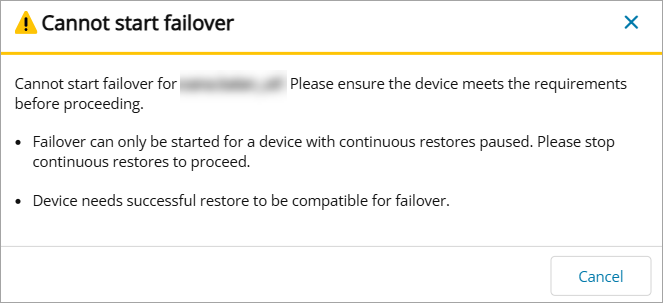
The devices are added to the DRaaS plan under the same Customer but at least one of them has its Failover state as Provisioning with Recovery Status as Scheduled/In Progress/Failed/Retrying. Device needs to be successful restore to be compatible for failover
-
The devices are added to the DRaaS plan under the same Customer but at least one of them has its Failover state as Standby with Recovery Status as Failed. The device cannot start failover because it does not have a successful restore. To proceed, you must roll back to a previous restore point or ensure a restore completes successfully
If the last session failed, perform a rollback. To rollback, select the device, click Rollback, choose the last successful session, and proceed. Once rolled back, the device is paused and ready for failover.
-
The devices are added to the DRaaS plan under the same Customer but at least one of them has its Failover state as Standby with Recovery Status as Retrying. Failover cannot be started while a recovery is in retrying mode. Please wait for the recovery to complete, or cancel the recovery and then initiate a rollback before starting failover
-
The devices are added to the DRaaS plan under the same Customer and at least one of them has its Failover state as Standby with Recovery Status as In - Progress. Failover cannot be started while a recovery is in progress. Please wait for the recovery to complete, or cancel the recovery and then initiate a rollback before starting failover
-
The devices are added to the DRaaS plan under the same Customer but at least one of them has its Failover state as Complete with Recovery Status as RUNNING. Failover can only be started for a device with continuous restores paused. Please stop continuous restores to proceed
-
The devices are added to the DRaaS plan under the same Customer but at least one of them is already in Failover. Failover can only be started for a device with continuous restores paused. Please stop continuous restores to proceed
-
The devices are added to the DRaaS plan under the same Customer but at least one of them has its Failover state as Standby with Recovery Status as Cancelling/Cancelled. Failover cannot be started due to an incompatible recovery status. Only devices with a recovery status of Completed or Completed with Errors are eligible for failover
-
-
Failover remaining: Refers to the limited amount of time that a device can remain in the failover state. This time does not have to be continuous
-
Allow VPN connection: Refers to the ability of the device to connect to the VPN network when device is in failover. This is a toggle option which has been turned off by default
-
Allow outbound internet access: Refers to the ability of the device to be accessed by the internet when device is in failover. This is a toggle option which has been turned off by default
-
-
Click Start failover
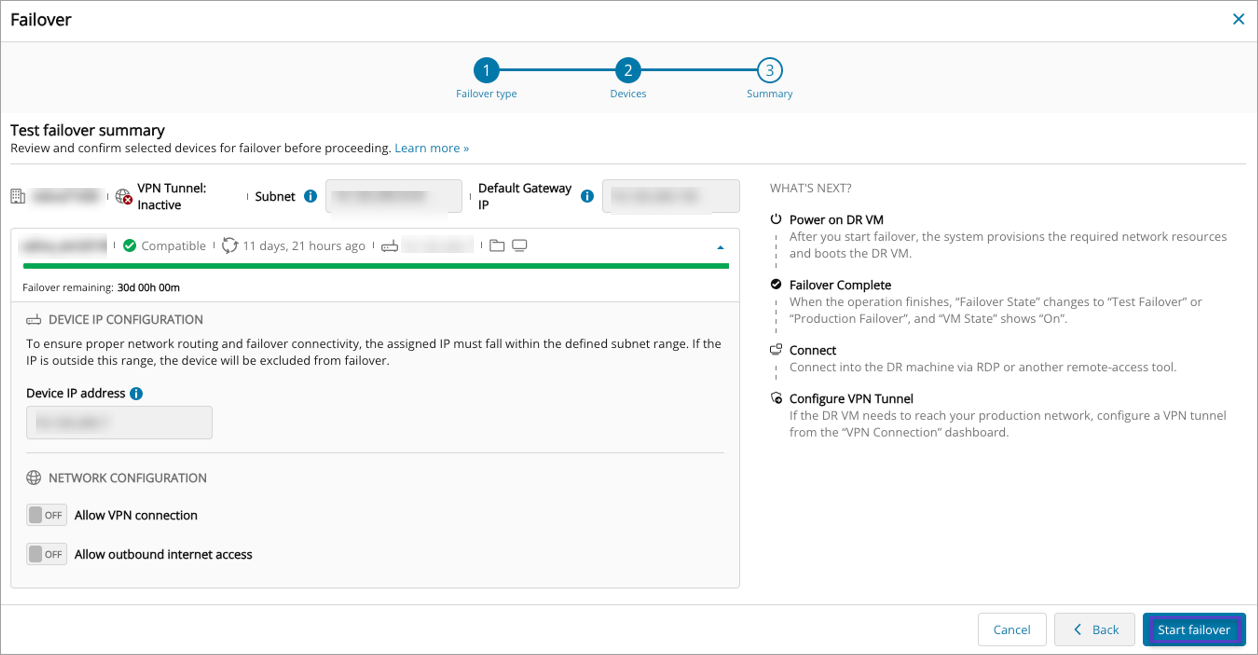
After clicking Start Failover, the system creates the subnet, assigns IPs, starts the machines, and updates the DRaaS dashboard with the Virtual Machine (VM) status (started/stopped). Once the VM is started and the agent is ready, additional button Stop VM appear.
You can Stop/Start VMs when device is in failover.: If machine does not start, you need to contact support service team.
If there is a requirement to add one more device to a failover which is in progress, when you click Start Failover for this device, the subnet is going to be pre-populated (because failover is in progress already. However you can change/specify the device’s IP.
-
-
Summary
-
Click Done
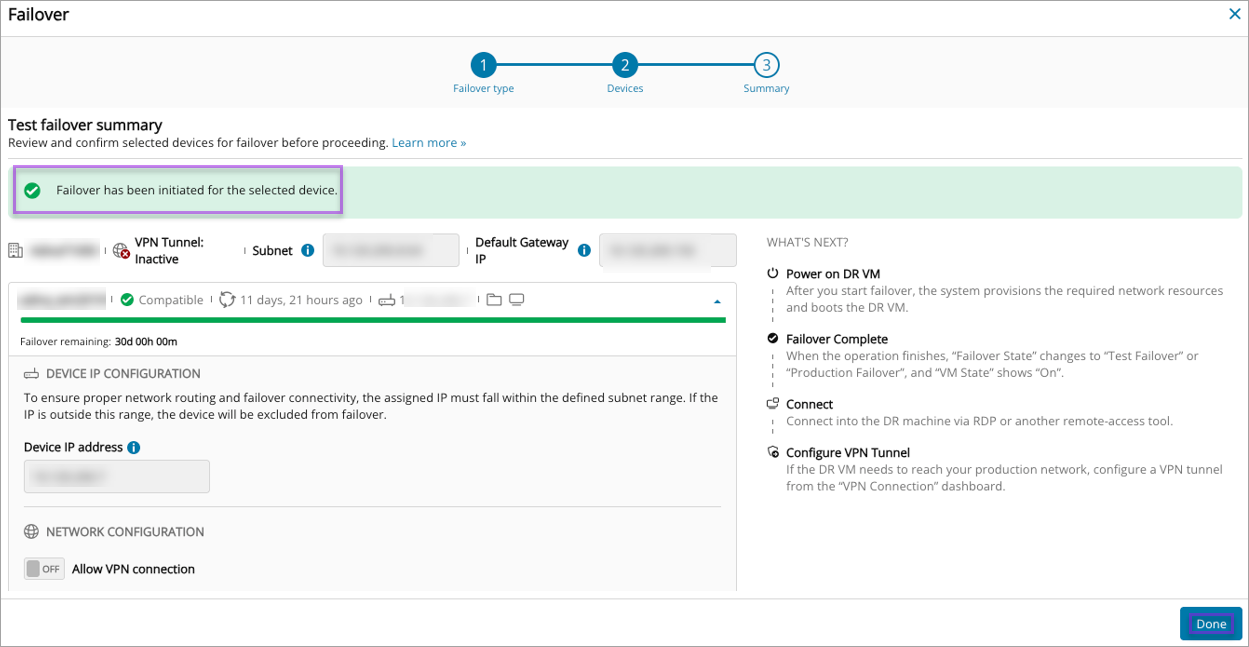
The Failover status now displays in the DRaaS overview dashboard.
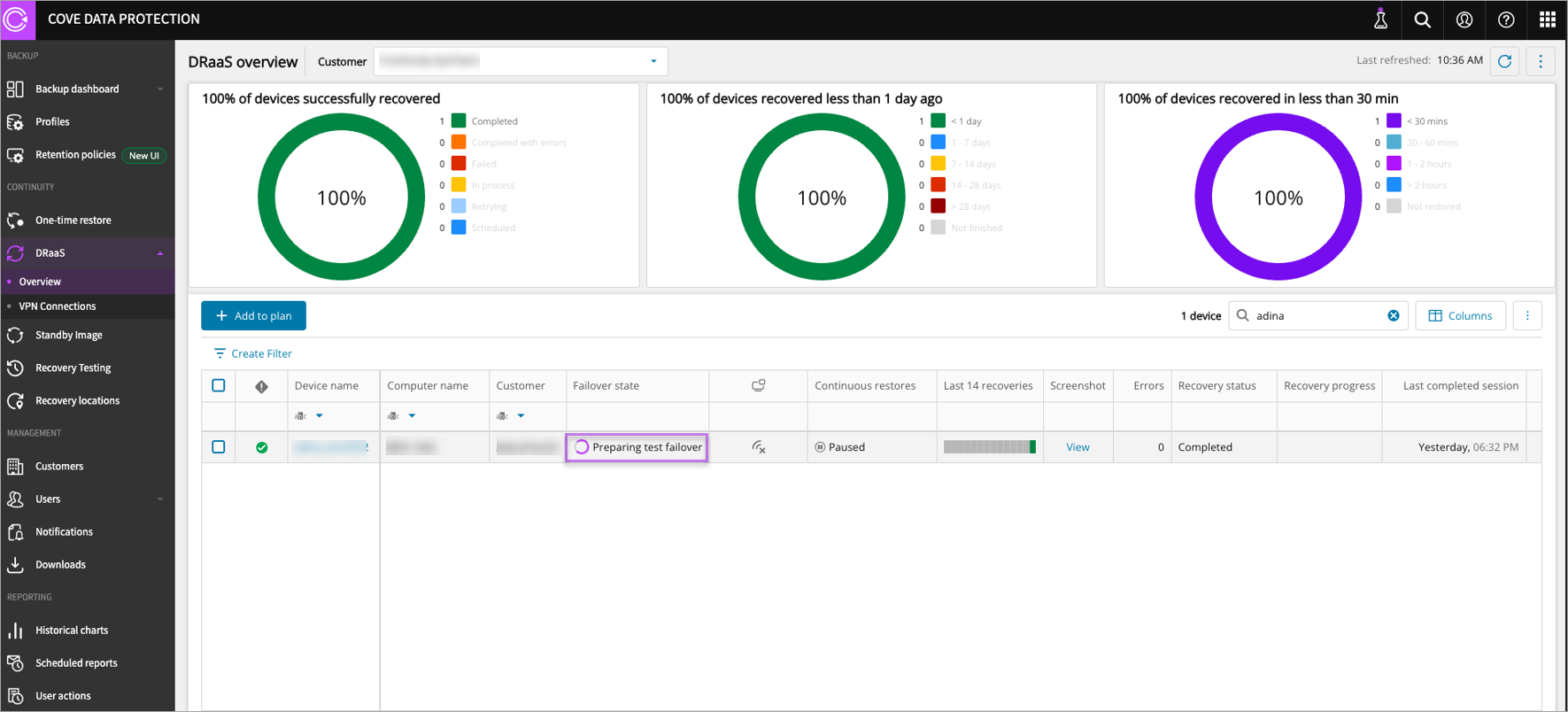
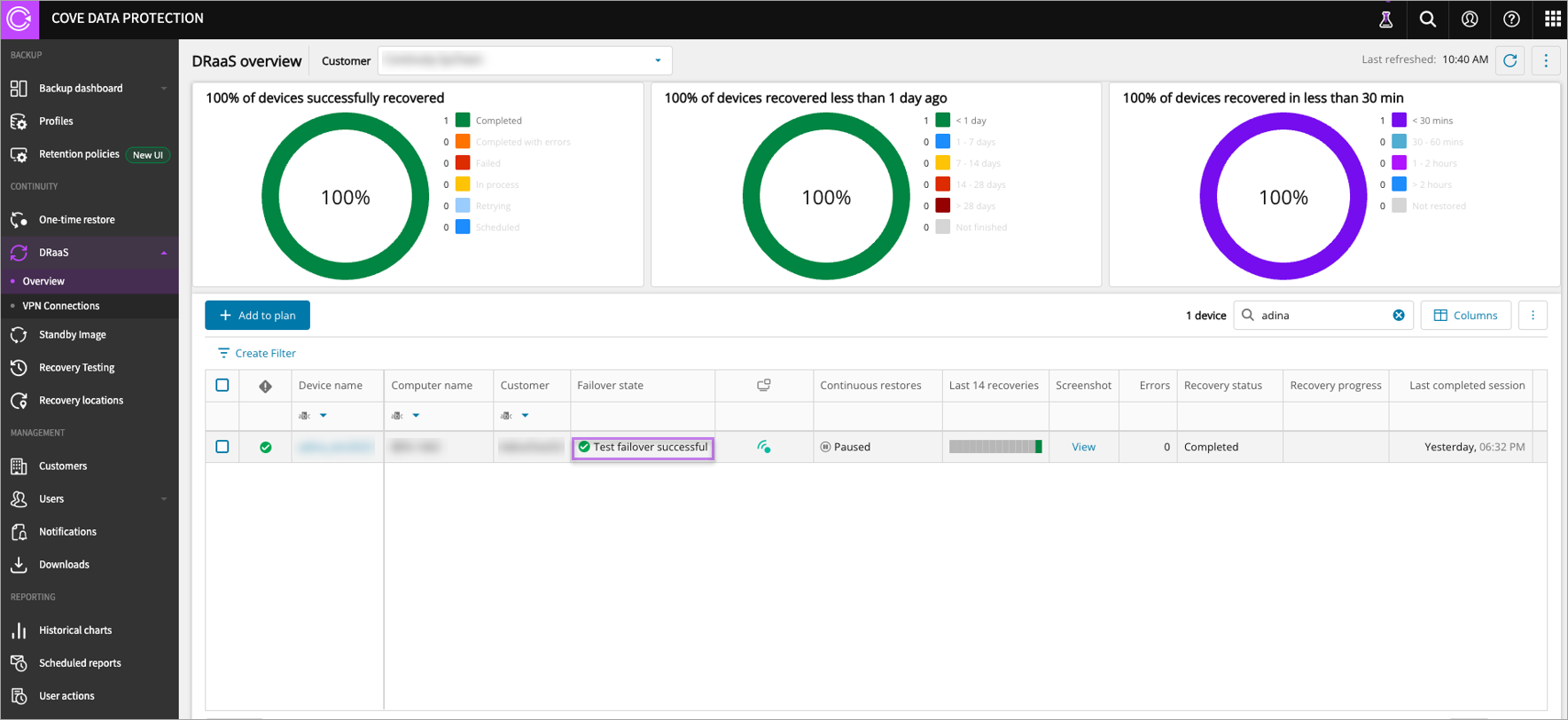
It might take a little while before you see the failover status confirming that failover was successful.
-
-
You cannot start two failovers at the same time. There is only one failover that can be in progress and it is either a test or a production failover.
Stopping failover
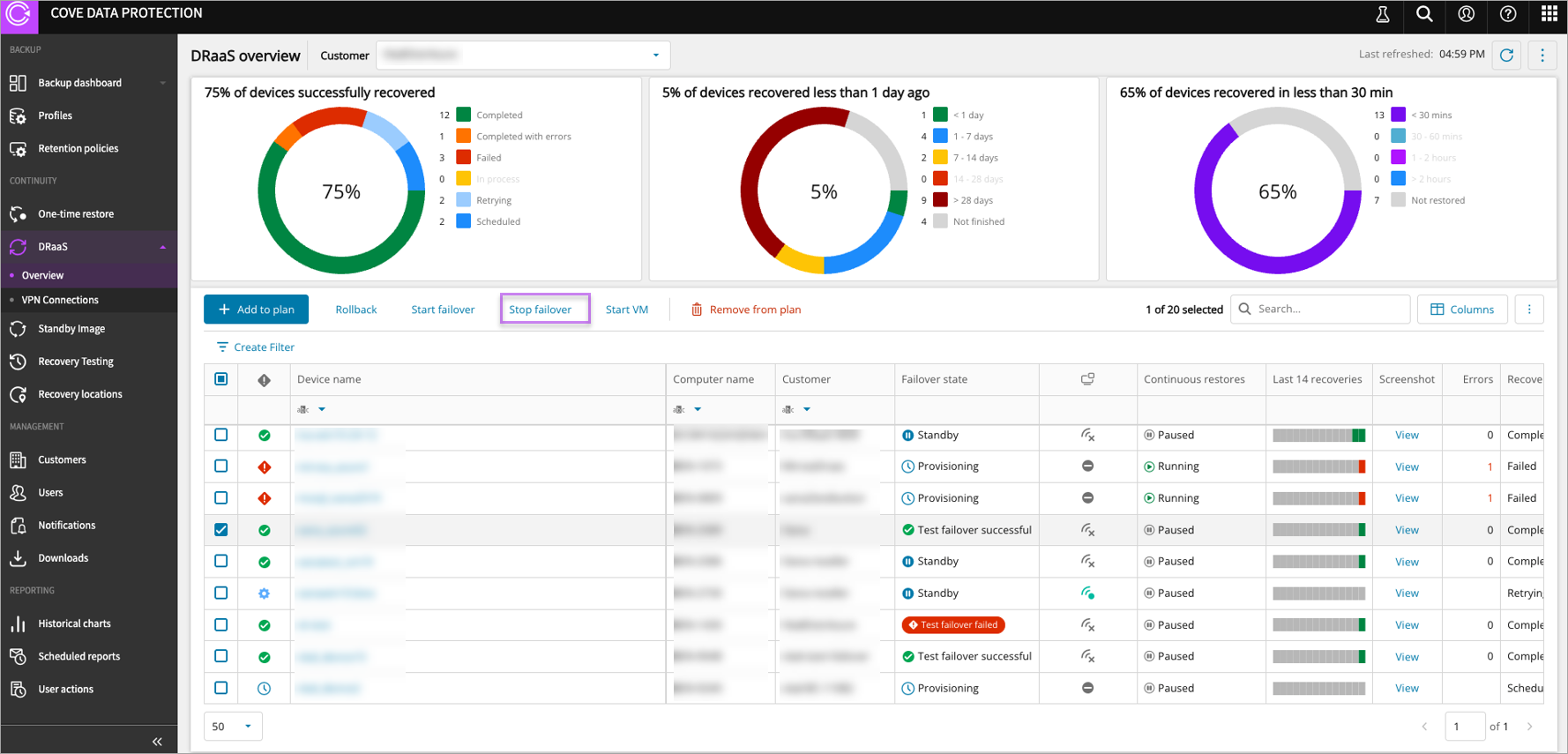
The device needs to be in failover mode to be able to stop it. You can only stop failover for the devices displaying either Test failover successful or Test failover failed as Failover state.
-
For Test failover: Clicking Stop failover powers off the machines and rolls back to the snapshot taken when failover started, re-enabling continuous restore
-
For Production failover: Clicking Stop failover powers off the machines without a snapshot rollback (since no snapshots are created). This is tied to the failback procedure, wherein the production servers are down, and you temporarily run your workload in our cloud. The following steps are required to get the environment back to its original configuration (to complete the restoration procedure of your On-Prem environment) prior to initiating stop failover:
-
Verify that the backups of the DRaaS production failover machines are enabled and check the latest session
-
Stop the DRaaS production failover VM
-
Once ready, perform a one-time restore (virtual environment) or bare-metal restore
You can now initiate stop failover
-
Stopping failover deactivates the DRaaS machines and switches the backup manager to restore-only mode. You must manually re-enable continuous restore for this device in the DRaaS dashboard so you can power on your new production devices.
External Access During Failover
For Production failover (full or partial), when your DR site becomes your primary site (up to 30 days), customers outside of your DR network would need to access services running on your DR servers. In this case, you can set up public IPs and configure inbound/outbound rules with the help of the service team.